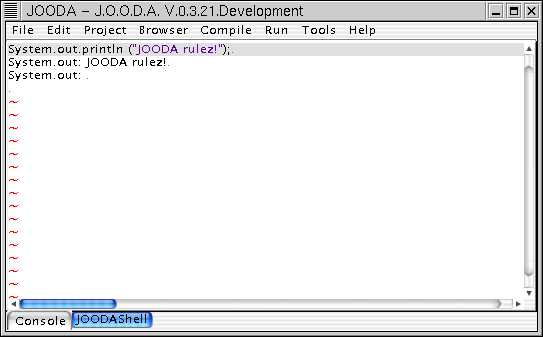
Figure 1.3.3- Initial Startup
JOODA is an intergreted development environment for Java, written in Java.
With a look & feel inspired by the renowned Smalltalk-IDE
Envy/Developer,class based code browser,
and on-the-fly code execution, JOODA is designed for object-oriented
development from the ground up.
In order to run JOODA, you'll need to have the JDK version 1.3
or later installed on your system.
(You may have luck running under earlier versions of JDKs, but
you'll probably have to recompile.)
1.3.2 Starting JOODA
Jooda should start on windows either by
- clicking on the jooda.jar or
- executing the jooda.bat in the "bin" subdirectory.
Jooda should start on UNIX by executing the jooda.sh (UNIX) in the
"bin" subdirectory.
The first time you start JOODA, there is no configuration file.
JOODA will offer to create a new one for
you. We suggest you accept with a friendly "OK."!
The JOODA console now appears in english, the default language
setting. You can select another
language via the options dialog.
Figure 1.3.3- Initial Startup
Now let's proceed to configure JOODA!
Select Edit -> Options from the menu bar. Here you can edit JOODA's basic options...

Figure 1.3.4- Configuration Panel
Enter the path to the Java interpreter, compiler, and to the Java classes,
according to your local setup.
You can also select your preferred language... English,German,
Bavarian, Spanish and Russian available right now,
but please send in your requests!
You also can choose your favorite Web-Browser, Editor and your
prefered java documentation Homepage. (The ECAP-Feature
is currently not available).

Figure 1.3.4a- Individual Execution
For using JOODA with other applications you can configure JOODA execute
your prefered applications
directly from JOODA, by hitting the CTRL-F1-F12. So, if you say
"I always need some good fuckin' musik
for developing my Java-Project!", you can launch your favorite mp3-Player
by hitting the CTRL-F2 Key's,
for example.

Figure 1.3.4b- Look&Feel
Here you can 'theme' JOODA, if you are not happy with the current Style.

Figure 1.3.4c- Editor-Options
This Panel allows the user to change the fontstyle, size and tabsize
Now you can create your first project.
Select -> File/New Project from the menubar and the project options dialog appears:

Figure 1.3.5 Creating a New Project
This is where to enter project-specific file info.
IMPORTANT:
You own the "Application" files. You have permission
to edit these files.

Figure 1.3.5a Creating a New Project-Additonal
Files
The "Additional" files belong to OTHER PERSONS.
They will be parsed along with the "Application" files,
but you don't have permission to edit them.

Figure 1.3.5b Creating a New Project-Other
Stuff
"Other-Stuff" is intended for e.g. config-files,
and files listed here won't be parsed.

Figure 1.3.5c Creating a New Project-Differentoptions
The differentoptions are made to switch in a fast way
between different Java-Compiler and
Java-Interpreter.(eg kawa or kaffe). To do this you have
to enter the different options here and enable them
by clicking on the "Use different stuff" Check-Button.

Figure 1.3.5d Creating a New Project-Imported
Packages
For using extern Packages, you have to enter them here.
Don't forget to save your project!!!
In JOODA there are 3 Browser in which you can edit
and manage your code:
The class browser shows all the classes in your
current application and additional files.
It doesn't yet support inner classes or interfaces.
On the left side, you'll find a navigable tree
representing all classes. When you click on a class node, all methods
belonging to the class are displayed on the right.
(You can also filterthe right view for either public or instance methods.)
When you edit code, changes must be saved by pressing
Ctrl-S.
Note that "Application" classes can be edited
but "Additional" classes cannot. (see 1.3.5 Creating a New Project)
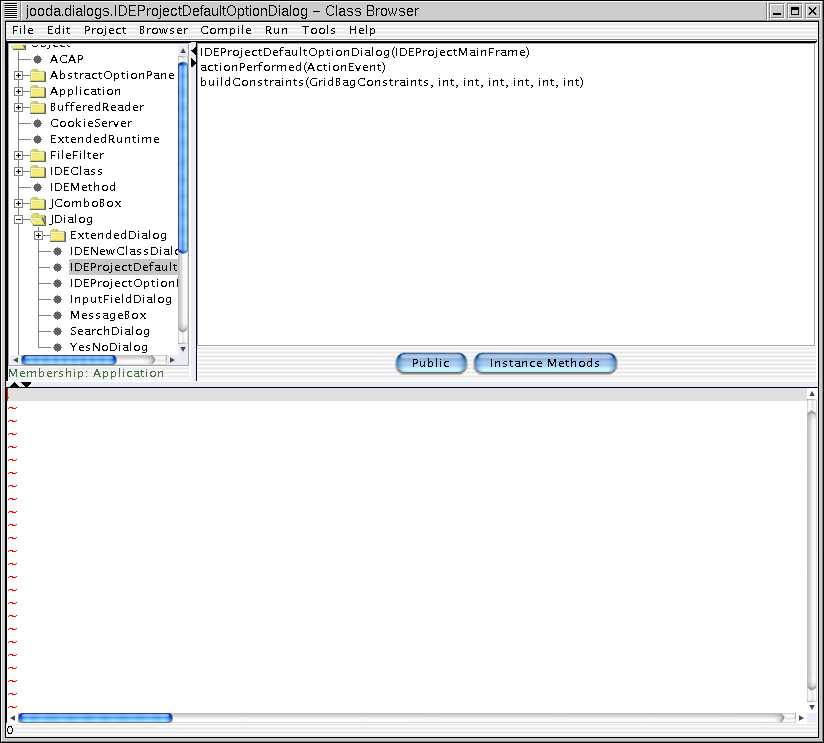
1.3.6.1 Class Browser
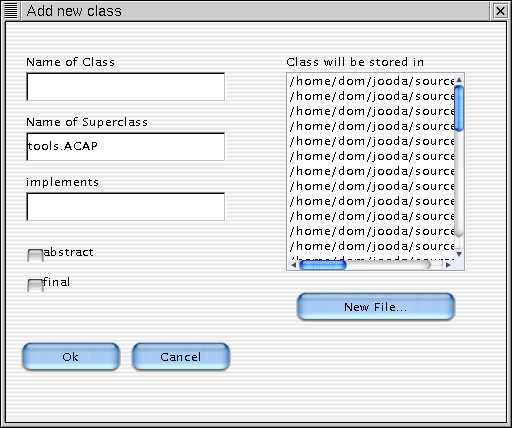
Right-clicking will bring up a pop-up menu from which you can create or delete classes and methods.
Selecting "create a new class" from the right-click pop-up menu brings up the fullowing dialog:
The application browser is similar to the
class browser, but it doesn't show "Additional" files.

Figure:1.3.6.2 Application Browser
In the file browser sourcecode is sorted by files. Here you'll see a listing of all files- "Application", "Additional" and "Other stuff" files.

Figure:1.3.6.3 File Browser
1.3.6.4 Dynamic Code Execution
If you want to test your code, without creating
a new class, you can dynamically evaluate a selection in
the console by pressing Ctrl-D. Look at this example: